The symptoms of a failed home hub are distinctive once you know them: your automations stop firing, remote access dies, and every accessory in the house reads No Response the moment you leave — while working perfectly when you are standing in the kitchen.
That pattern is worth learning, because a hub failure disguises itself as dozens of accessory failures. People spend evenings power-cycling bulbs that were never broken.
What the home hub actually does
A home hub is the always-on device that represents your home when your iPhone is not on the local network. In the current architecture that means a HomePod, a HomePod mini, or an Apple TV.
Three things depend on it entirely:
- Remote access. Away from home, every command routes through the hub. No hub, no control.
- Automations. Time-based, sensor-based, location-based — all of them execute on the hub, not on your phone. This is why automations keep failing even while you can control everything by hand.
- Matter accessories. You cannot add a Matter accessory to the Home app without a hub, and Thread-based Matter accessories additionally need a Thread-capable hub such as a HomePod mini or an Apple TV 4K with Ethernet.
Shared access and camera recording also route through the hub. In practice, if it is down, most of what makes HomeKit useful is down with it — even though every individual accessory is still working.
The February 2026 change that broke a lot of homes
On 10 February 2026, Apple ended support for the original Home architecture. Homes that had not migrated lost remote access, automations, and shared control.
The change that catches people out: the current architecture does not support iPad as a home hub. If your setup ran on an iPad in a drawer for years, it stopped being a hub on that date, and nothing in the Home app makes the reason obvious — you just see accessories that no longer respond.
To check what you are running, open the Home app, tap More, and open Home Settings. A home still on the old architecture shows an upgrade prompt; a migrated home does not. Apple made migration automatic after the deadline, but automatic migration cannot conjure a supported hub — it will simply leave you without one.
Confirming the hub is really the problem
Before changing anything, establish that the hub is at fault rather than the network underneath it.
-
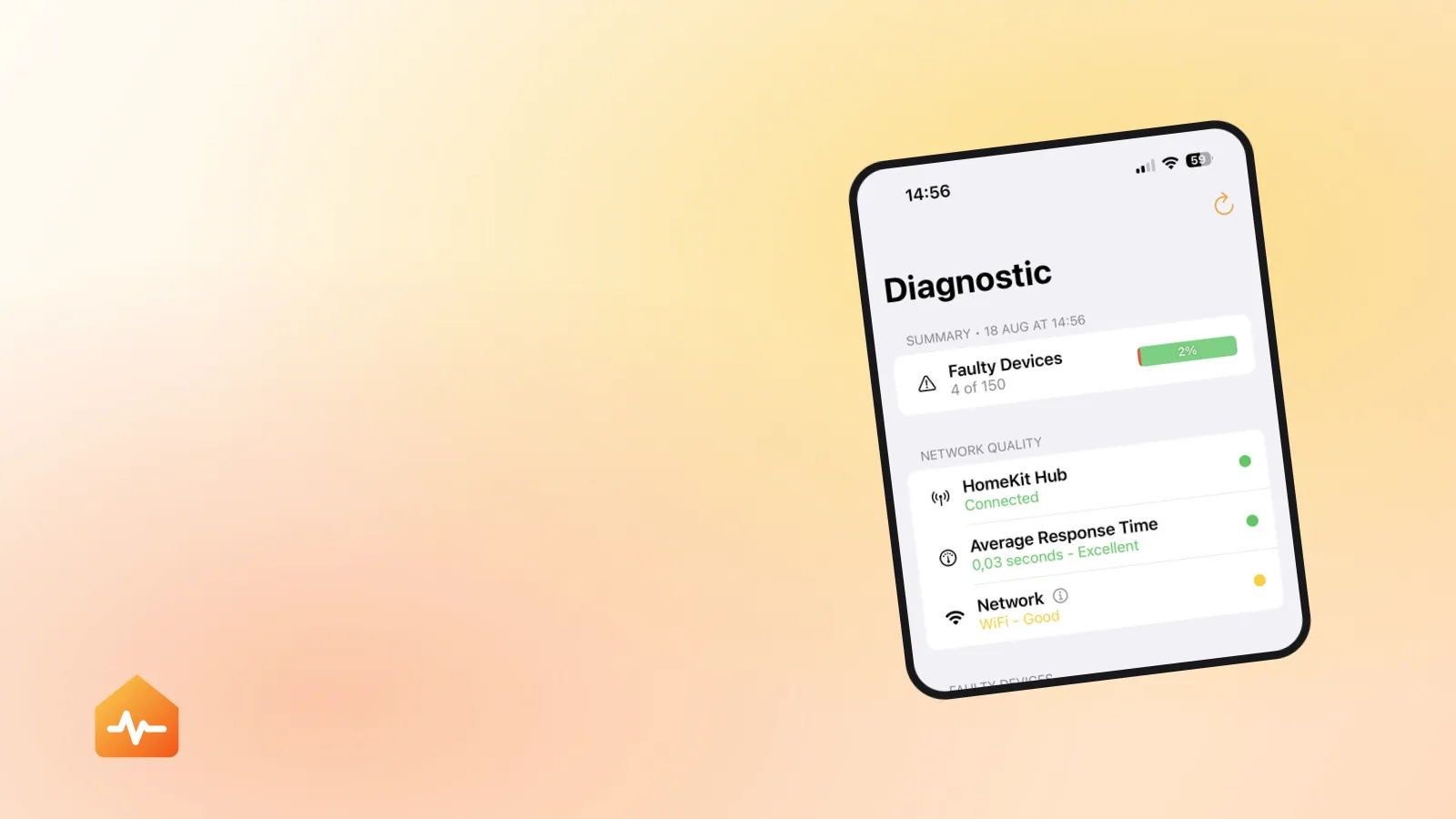
Read the hub status. Home app → More → Home Settings → Home Hubs & Bridges. The active hub sits at the top. “Connected” means HomeKit believes it is reachable; anything else is the answer to your question.
-
Test the local/remote split. On Wi-Fi at home, control an accessory. Then turn Wi-Fi off on your iPhone so it uses cellular, and try the same accessory. Works locally, fails on cellular: hub problem, and fixing remote access works through the account and iCloud settings this depends on. Fails both ways: accessory or network problem, not a hub problem.
-
Check the hub device itself. Is the HomePod responding to Siri? Does the Apple TV wake and reach the internet? A hub that is unresponsive as a device is not going to serve as a hub.
-
Check whether the hub moved networks. A HomePod that rejoined a guest SSID, or an Apple TV switched from Ethernet to Wi-Fi, is on the wrong side of your network from your accessories.
Fixes, in the order that works
Each step assumes the previous one did not help. The ordering is deliberate — restarting the hub before the network is the single most common wasted effort in HomeKit troubleshooting.
-
Update the hub’s software. An Apple TV or HomePod several versions behind your iPhone can fail to negotiate correctly. Update the hub, then the iPhone.
-
Restart the network first. Unplug the modem and router, plug them back in, and wait for the network to come up completely — not just for the lights to settle, but until another device can actually browse.
-
Then power-cycle the hub. Unplug the HomePod or Apple TV, wait ten seconds, plug it back in. A HomePod takes a couple of minutes to come back and rejoin; do not judge it immediately.
-
Verify iCloud Keychain and two-factor authentication are on for your Apple Account. HomeKit’s hub relationship depends on both, and a Keychain that got disabled silently breaks hub function in a way nothing on screen explains.
-
Check the hub is on the same network as your accessories — same SSID, not a guest network, and not isolated by AP isolation on the router.
-
Pin a preferred hub. In Home Hubs & Bridges, turn off Automatic Selection and choose the hub with the best connection. HomeKit’s automatic election does not know that your Apple TV is on Ethernet and your HomePod is at the far end of the house.
-
Remove and re-add the hub. For an Apple TV, remove it from its room in the Home app and add it back through Settings → AirPlay and Apple Home → Room. For a HomePod, a full reset and setup re-establishes the relationship.
Choosing between hubs when you have several
More hubs is not automatically better. HomeKit elects one primary hub and the others idle as fallbacks, so what matters is which one gets elected.
| Hub | Thread border router | Best for |
|---|---|---|
| Apple TV 4K (Wi-Fi + Ethernet) | Yes | The most reliable primary — always powered, and can be wired |
| Apple TV 4K (Wi-Fi only) | No | A solid primary, but Wi-Fi only |
| HomePod mini | Yes | Good Thread coverage; place them apart, not together |
| HomePod (full size) | Yes | Fine as a hub; usually not the best placement in the house |
Two practical rules follow. First, if your Thread accessories are unreliable, spreading HomePod minis across the house does more good than adding a second one in the same room. Second, if HomeKit keeps electing a hub on weak Wi-Fi, pin your wired hub manually rather than hoping the election improves.
When the hub is fine and the network is not
A hub can report “Connected” and still fail to do its job, because reachable is not the same as fast. Two configurations cause most of this:
- A single SSID spanning 2.4 and 5 GHz with band steering. Your hub sits on 5 GHz, most accessories are 2.4 GHz-only, and the router does not always bridge them cleanly. Giving the bands separate SSIDs, and putting the hub and the accessories on the same one, fixes a surprising number of “random” failures.
- AP isolation, or a mesh node isolating clients. Devices cannot see each other, so the hub cannot reach accessories even though every device has working internet. Every device has a green light and nothing works.
The tell for both: internet works fine everywhere, but local device-to-device communication is unreliable. HomeKit is entirely local device-to-device communication, which is why it suffers first and worst.
After the hub comes back
Two things are worth doing once the hub is healthy again.
Re-check your automations. An automation that referenced an accessory which was removed or re-paired during troubleshooting is now broken — it will sit there looking normal and never fire. That failure mode is covered in why HomeKit automations stop working.
Watch for it happening again. A hub that dropped once usually drops again, and the second failure is easier to diagnose if you know when the first ended. Note the date. If the pattern is weekly, look at your router’s DHCP lease time and at whether it is rebooting on a schedule — hubs that lose their address at 4 a.m. every Sunday are a genuinely common and genuinely invisible problem.