Home Hubs
HomeKit Not Working Away From Home: Fixing Remote Access
If everything works at home and fails the moment you leave, your accessories are fine and your home hub is not. Here is how to test it without leaving the house.
7 min read
HomeCare for HomeKit
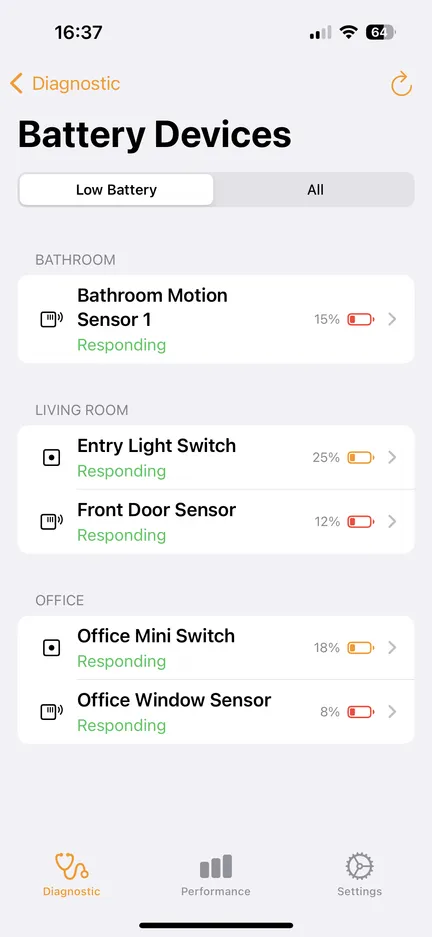
HomeCare scans every accessory, scene and automation in your home, then tells you what failed, what’s slow, and what’s about to run out of battery.
No subscription. No in-app purchases.Requires iOS 16.0 or later. iPhone and iPad.

The Home app tells you something is “Not Responding” — eventually, and only if you happen to be looking. It won’t tell you when it stopped, which scenes depend on it, or whether the problem is the accessory, its bridge, or your hub. So you power-cycle things at random and hope.
HomeCare answers the question directly.
HomeCare records a “Last Time Online” for every failing accessory.
Every scene and automation that depends on the accessory is listed with it.
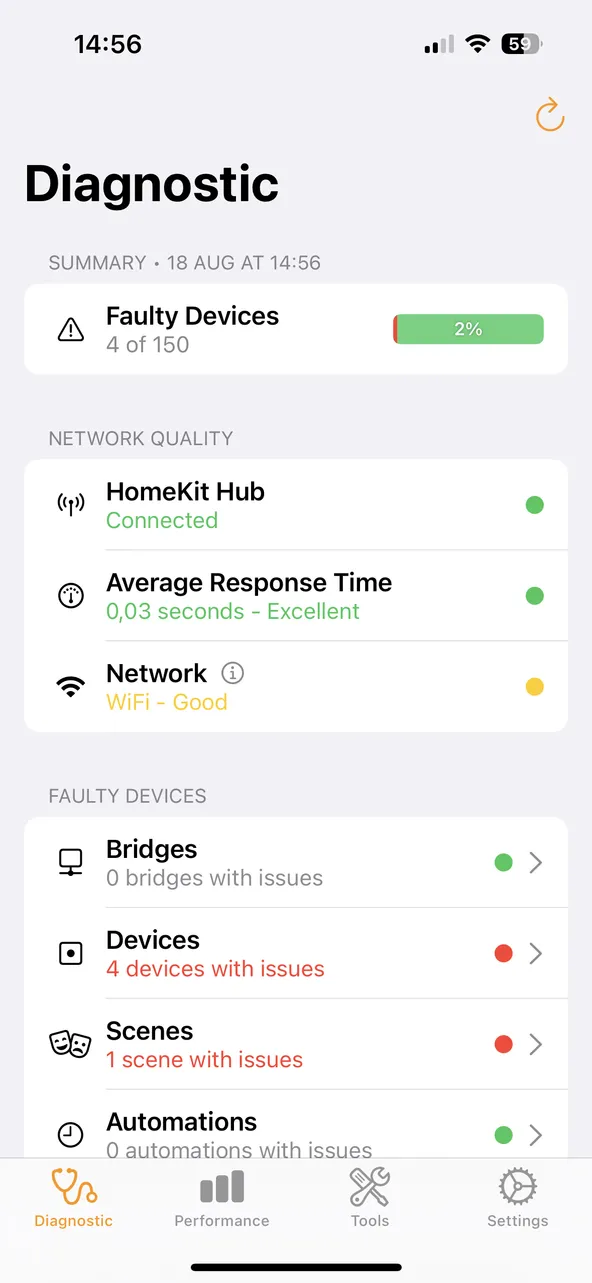
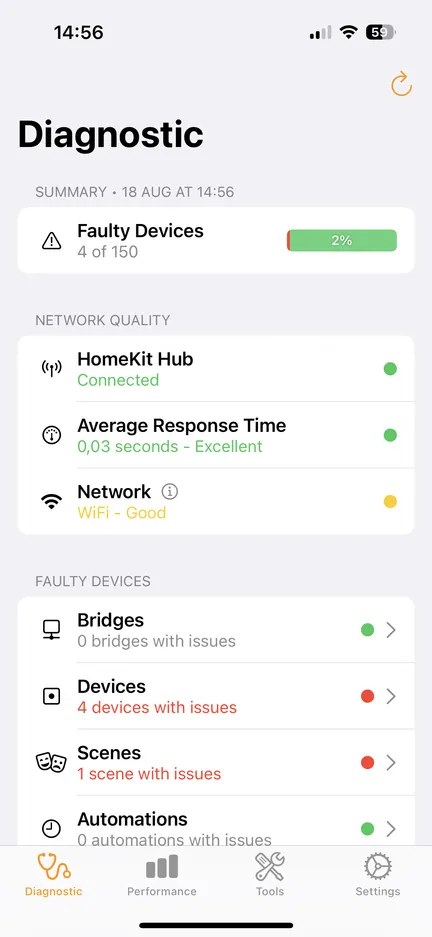
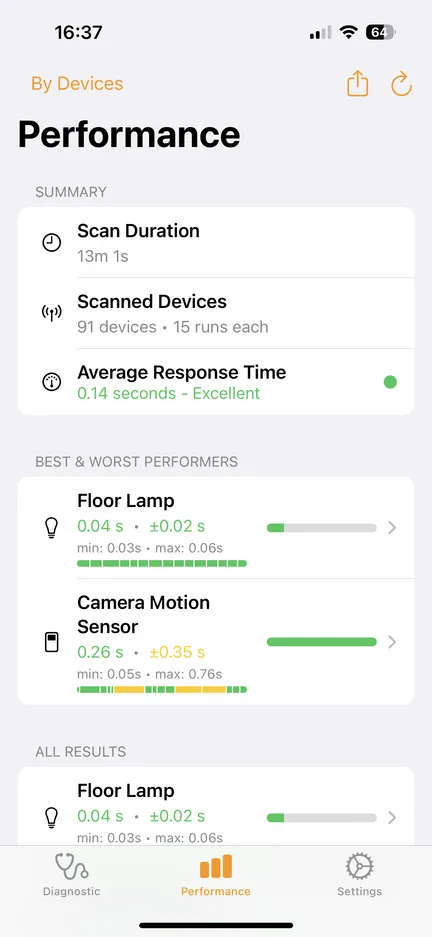
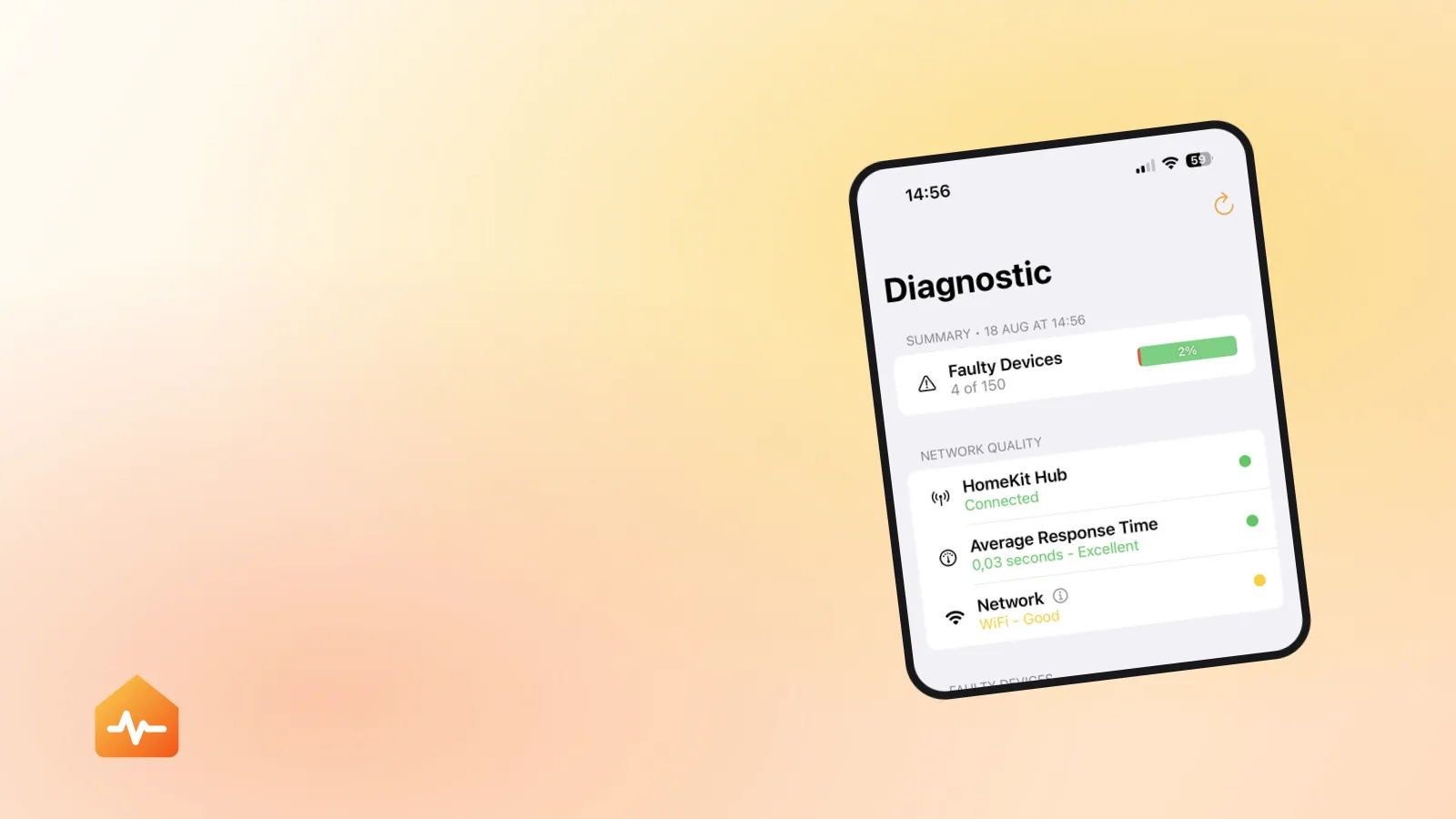
Hub status, network quality and response times are measured in the same scan.
Features
Nine tools built around one idea: stop guessing which part of your smart home is broken.
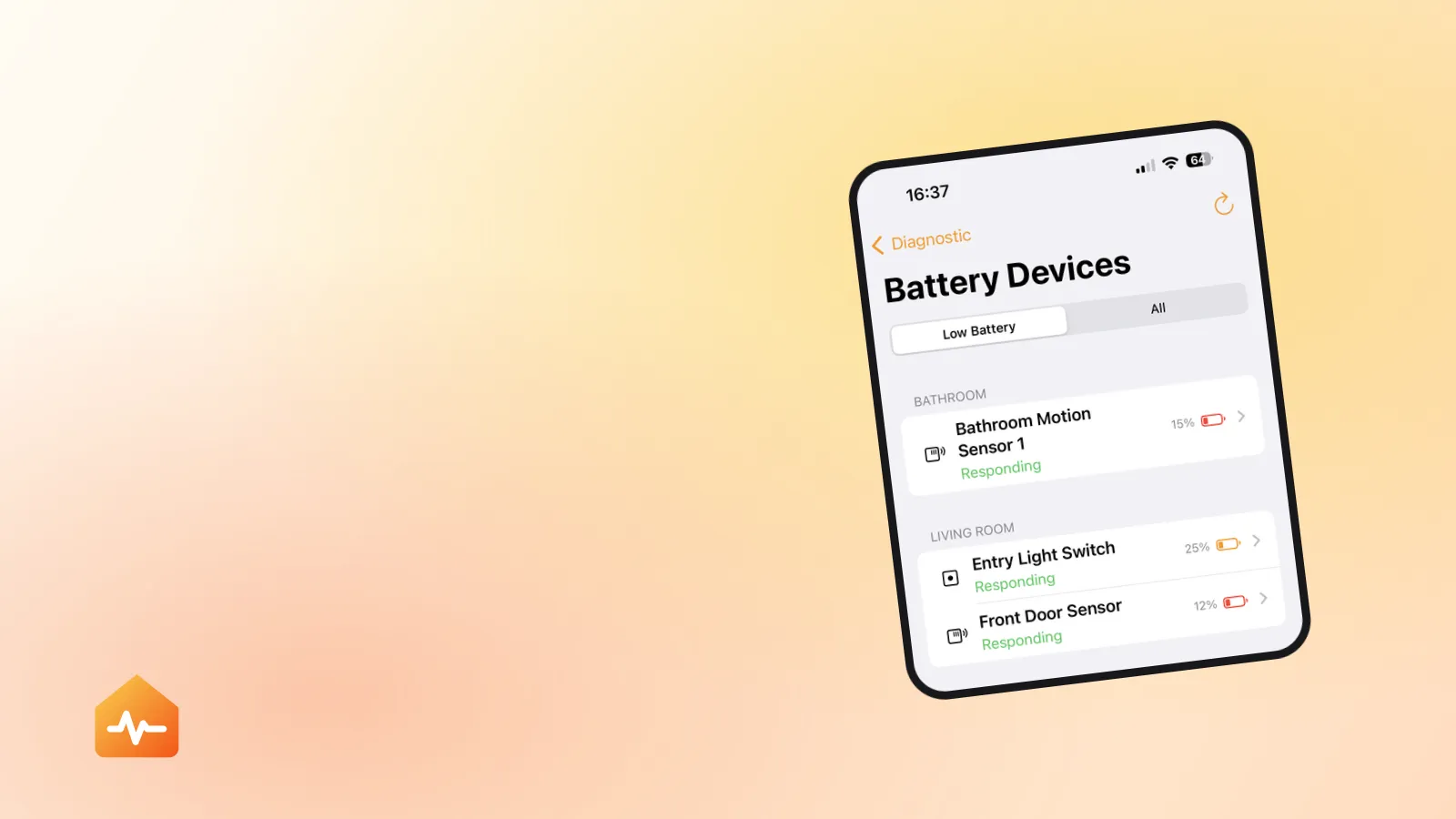
Tests every accessory in your home and reports what’s unreachable, timing out, or simply not responding. Failing devices show a “Last Time Online” stamp so you know when the trouble started.
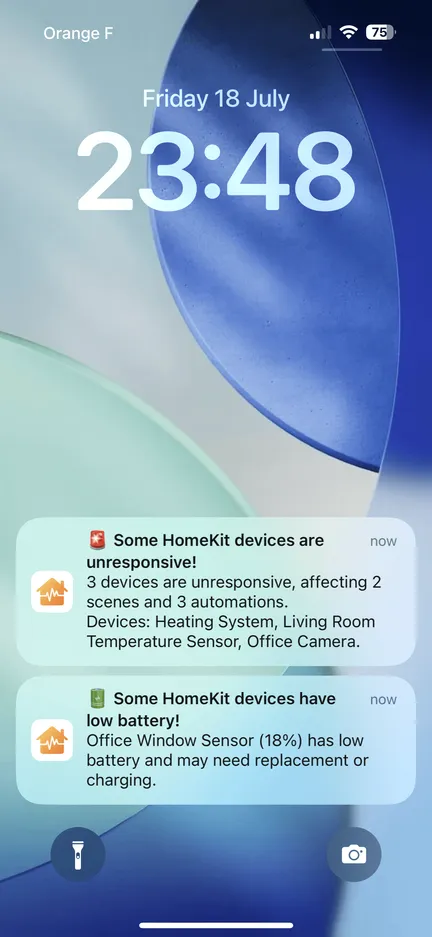
Automatic health checks run in the background and push a notification only when something new breaks — so you find out before your automations do.
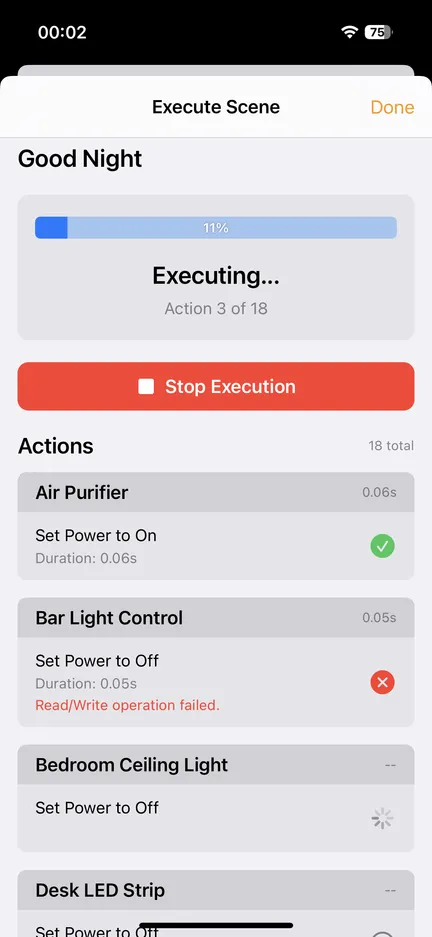
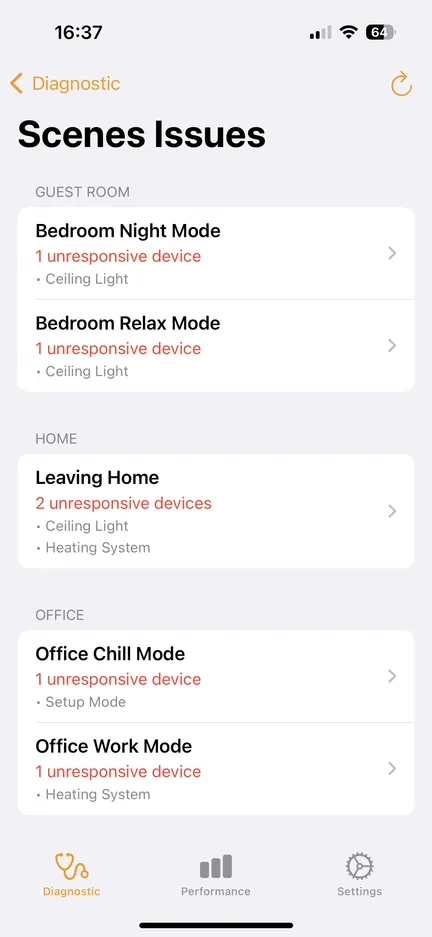
Runs each action of a scene individually to pinpoint the exact one that makes the Home app report “Failed”. No more mystery failures.
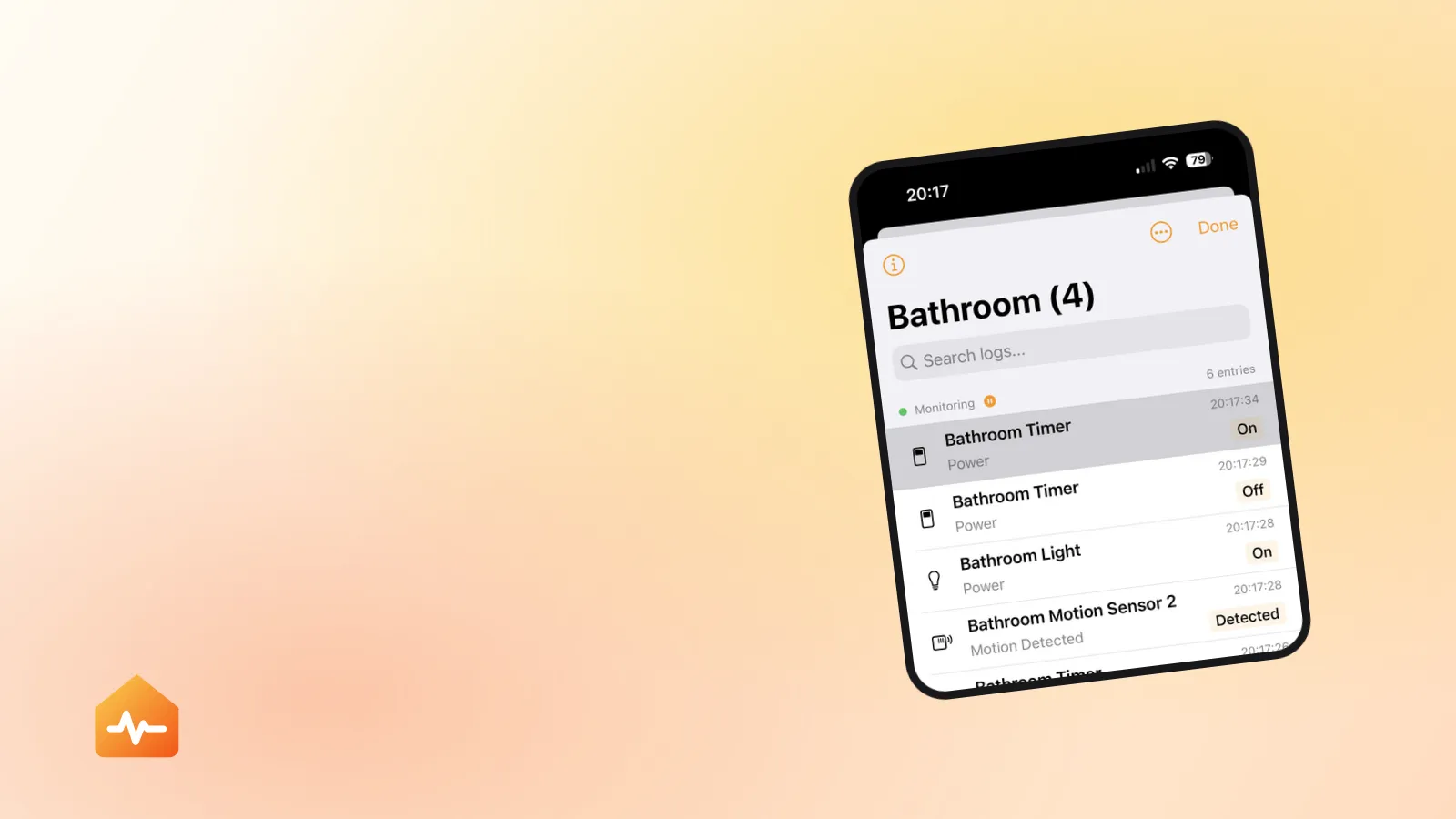
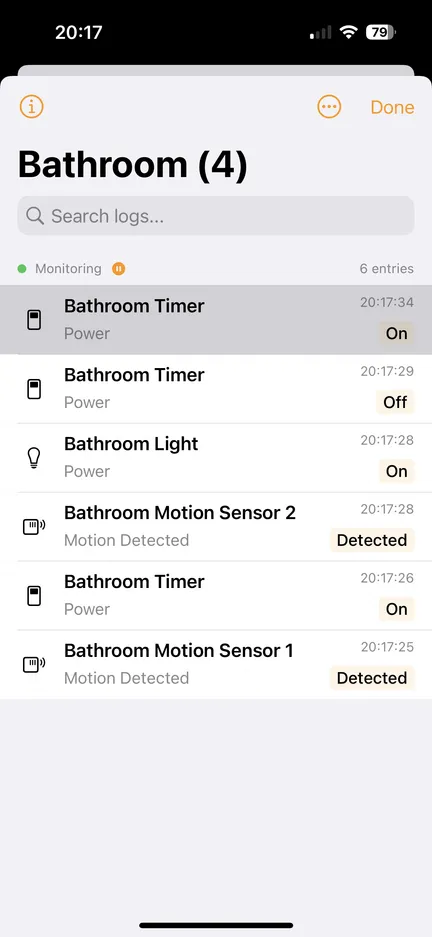
Watch every HomeKit state change across your whole home, a single room, or one accessory, with timestamps. Essential when you need to prove a device is misbehaving.
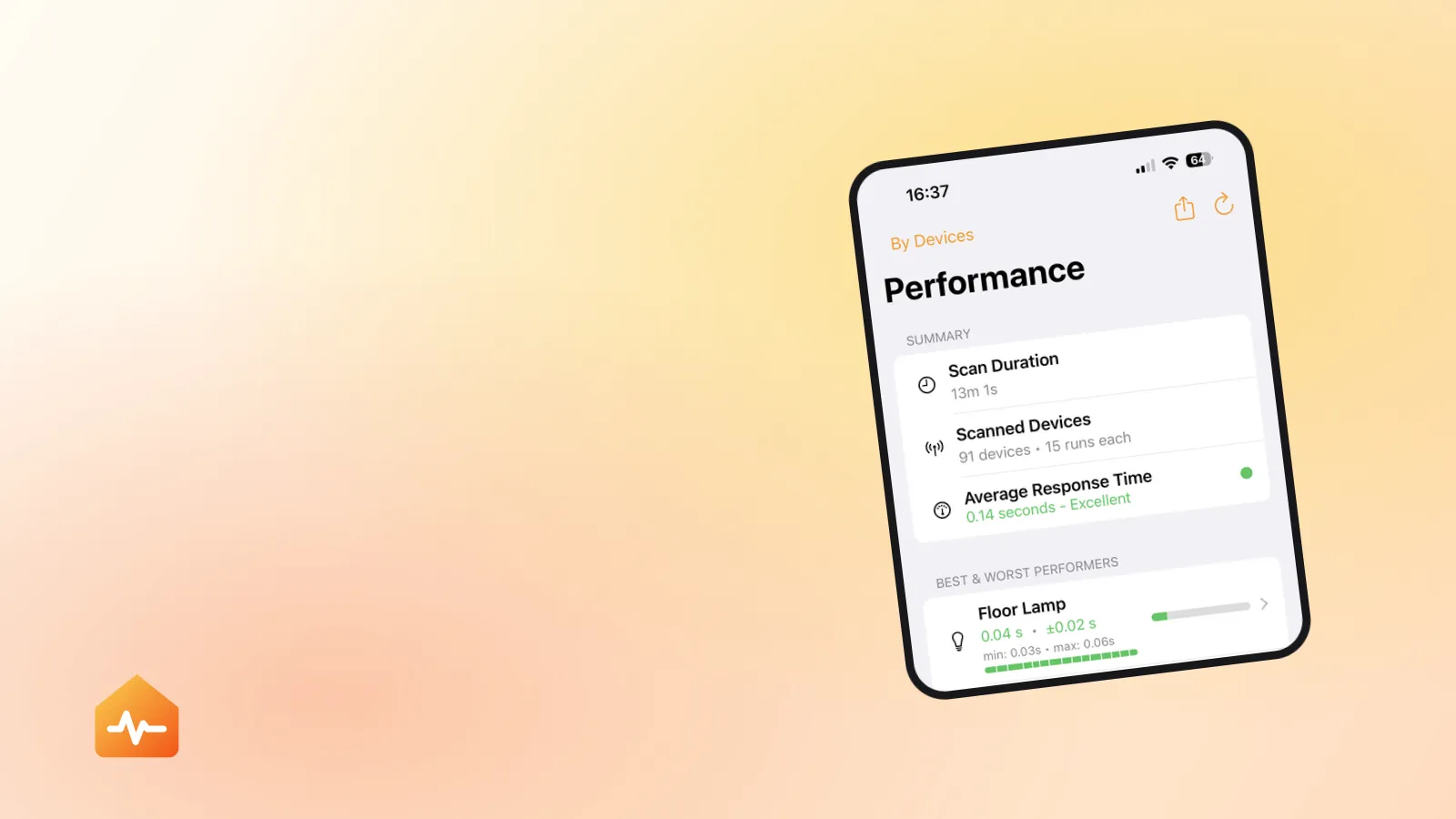
Run repeated test cycles to measure response times and success rates, then compare across devices, brands, bridges and rooms. Export to PDF or CSV.
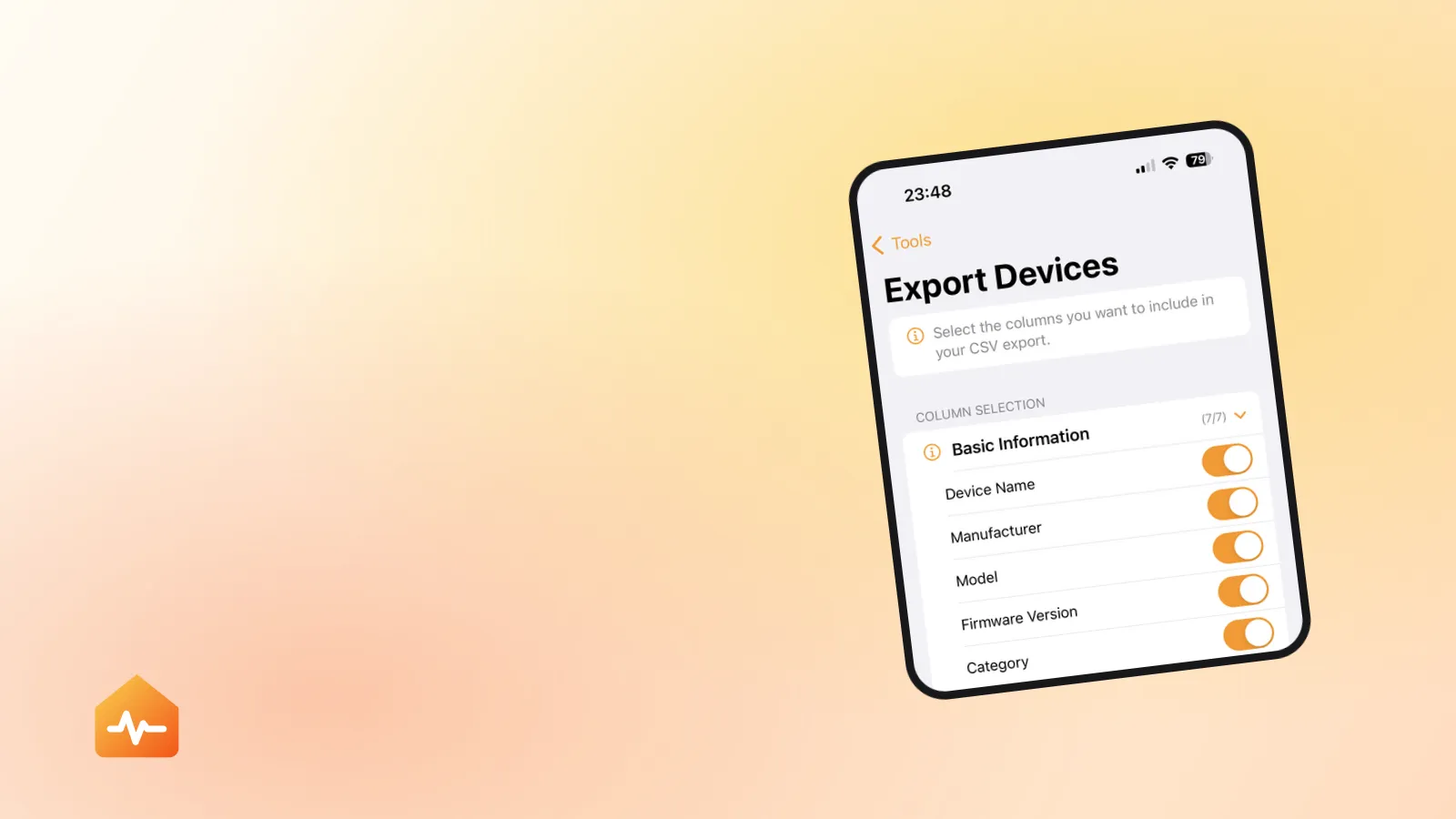
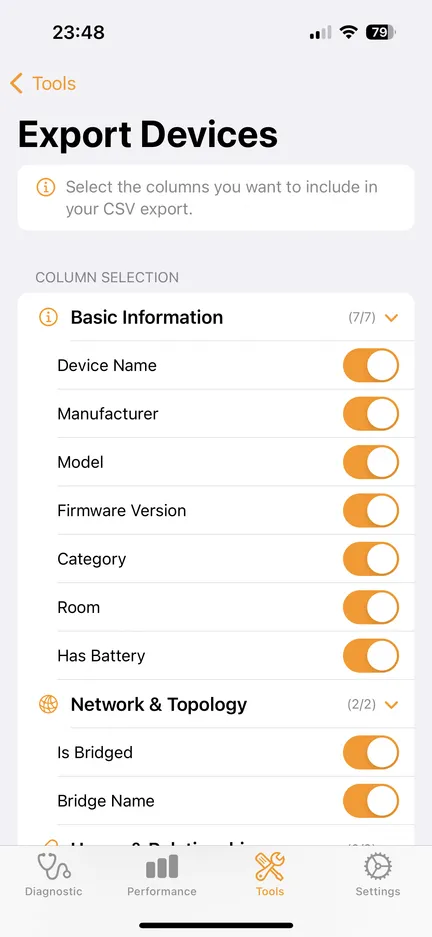
Find automations with broken triggers, conditions or actions, and scenes that do nothing at all. Export your full setup to CSV or readable text as a backup.
How it works
HomeCare talks to every accessory over HomeKit and measures how each one responds. A full scan of a hundred devices takes seconds in Quick Mode.
Read the guideResults are grouped by bridges, devices, scenes and automations — plus hub status, network quality and average response time, so you can tell a dead bulb from a dead network.
Read the guideEach faulty device comes with troubleshooting steps. Turn on background monitoring and HomeCare will tell you the next time something drops off.
Read the guideNative iOS design, light and dark mode, iPhone and iPad.


Swipe to browse
All diagnostics are performed locally on your device. HomeCare never transmits or stores your accessory names, your home layout, or your automation data — anywhere.
Guides
Practical, tested fixes for the HomeKit problems people actually run into.

Home Hubs
If everything works at home and fails the moment you leave, your accessories are fine and your home hub is not. Here is how to test it without leaving the house.
7 min read

Network
Most HomeKit accessories only speak 2.4 GHz, yet splitting your network is usually the wrong fix. Here is what needs which band, and what to change instead.
9 min read

Automations
A broken automation looks completely normal in the Home app. Here is how to find the dead ones, why deleting the wrong ones costs you, and what to do when one refuses.
7 min read

Troubleshooting
An accessory that responds in the manufacturer app but not in Apple Home is not broken. The two apps reach it by different routes, and only one of them is local.
8 min read

Troubleshooting
An accessory that drops out and comes back cannot be diagnosed by testing, because testing is exactly when it works. Here is how to read the pattern instead.
9 min read

Troubleshooting
A new router does not break your accessories — it removes the network they were paired to. Here is which settings break HomeKit, and the order to bring everything back.
10 min read
About HomeCare, and about HomeKit in general.