Somewhere in the past week you have probably been told to split your Wi-Fi into separate 2.4 GHz and 5 GHz networks to fix HomeKit. It is the most repeated piece of advice on the subject, and it is right about the problem and usually wrong about the fix.
The problem is real: most HomeKit accessories cannot use 5 GHz at all. What follows from that is more specific — and more useful — than renaming your network.
What actually needs which band
| Device | Band it needs | Why |
|---|---|---|
| Smart plugs, bulbs, most sensors | 2.4 GHz only | Cheaper radios, better range through walls |
| Cameras and video doorbells | Often 2.4 or 5 GHz | They need the bandwidth, so many support both |
| HomePod, HomePod mini, Apple TV | Either — or Ethernet | Ethernet on an Apple TV removes the question entirely |
| Your iPhone | Any | It only has to reach the hub and the accessories |
| Thread accessories | None — not Wi-Fi | Different radio standard; no Wi-Fi password involved |
| Bridged accessories (Hue, Lutron) | None | The bridge is on the network; the bulbs are not |
Two rows there matter more than the rest.
Bridged accessories have no Wi-Fi at all. The bulbs behind a Hue Bridge speak Zigbee to the bridge, and the bridge sits on Ethernet. No band question applies to them, which is why they are often the only things still working when the Wi-Fi is misbehaving.
Thread is not Wi-Fi. Thread accessories transmit in the 2.4 GHz band but use a different radio standard, hold no Wi-Fi credentials, and cannot be “moved” to another band. Advice about splitting SSIDs does nothing for them. They do share the airspace, which matters later.
Setup versus operation — the distinction that explains everything
This is the part the usual advice skips, and it resolves most of the confusion.
During pairing, your iPhone and the accessory need to reach each other directly. If your phone is sitting on 5 GHz and the accessory only has a 2.4 GHz radio, that first conversation may never happen, and the accessory fails to be added.
During normal operation, the accessory just needs to be on the network. Your iPhone can be on 5 GHz, on 6 GHz, or on mobile data on the other side of the country, because the traffic reaches the accessory through your router or your home hub rather than directly from the phone’s radio.
So the classic pattern — an accessory that refuses to pair, then works perfectly for two years once it is on — is not a mystery. It is one problem that exists only at setup time.
What Apple actually recommends
Apple publishes recommended settings for Wi-Fi routers and access points, last updated in July 2026. On the band question it is unambiguous, and it is the opposite of the popular advice.
Set to a single, unique name (case-sensitive) for all bands.
Apple’s stated reason: if you give the 2.4 GHz, 5 GHz and 6 GHz bands different names, “devices might not connect reliably to your network, to all routers on your network, or to all available bands of your routers”. On a Wi-Fi 6E network, Apple devices will additionally flag a split-name network as having limited compatibility.
The rest of Apple’s guidance is worth applying while you are in the router’s settings, because several of these matter more for smart home reliability than the band names do:
| Setting | Apple’s recommendation |
|---|---|
| Security | WPA3 Personal, or WPA2/WPA3 Transitional for older devices |
| Network name | One name for all bands, unique, not a default like netgear |
| Hidden network | Disabled |
| MAC address filtering | Disabled |
| Bands | Enable all bands the router supports |
| Channel | Auto |
| Channel width | 20 MHz on 2.4 GHz; Auto or all widths on 5 GHz and 6 GHz |
| DHCP | Enabled, and only one DHCP server on the network |
| DHCP lease time | 8 hours for a home network |
| WMM | Enabled |
Two of those are frequent HomeKit culprits in their own right. WPA3-only will quietly exclude older accessories that have no WPA3 support — Transitional mode is what lets modern devices use WPA3 while older accessories fall back to WPA2 Personal (AES). And MAC address filtering is now actively counterproductive, because Apple devices use a private Wi-Fi address that differs per network, so an allow-list carried over from an old router will not contain your iPhone’s current address.
Band steering, and what it really breaks
Band steering is the router feature that nudges devices from 2.4 GHz towards 5 GHz to spread the load. It is sold under names like Smart Connect, Band Steering, or simply nothing at all — on many mesh systems it is on by default and not exposed.
For phones and laptops it is broadly fine. For smart home accessories it produces two specific failures.
Repeated association attempts. A router that keeps offering 5 GHz to a device with no 5 GHz radio can leave that device cycling through failed associations. The accessory ends up on the network eventually, or does not, and the behaviour is inconsistent enough to look random.
Setup failures. Your iPhone is steered to 5 GHz at exactly the moment it needs to be on 2.4 GHz to talk to a new accessory.
The fix is not usually to split the network permanently. It is to reduce how aggressively the router steers, or — where the router gives you no control at all — to split temporarily, add the accessory, and merge the names again.
The 2.4 GHz band is crowded, and that is the real constraint
Everything cheap lives on 2.4 GHz. Your accessories, your neighbours’ accessories, Bluetooth, older cordless phones, baby monitors, microwave ovens, and poorly shielded USB 3 enclosures all share it.
This produces the evening pattern people report: accessories that are reliable all day and marginal from six o’clock, when every flat in the building has its network busy and someone is heating dinner.
Two things genuinely help.
Channel width of 20 MHz on 2.4 GHz, as Apple recommends. A 40 MHz channel on a crowded band takes more spectrum and collides with more of it.
Distance and placement. A 2.4 GHz accessory two rooms away from the nearest access point is operating at the edge of what it can do. Moving an access point a few metres, or adding one, does more than any configuration change — and it is the fix nobody wants to hear because it involves standing up.
Measuring instead of guessing
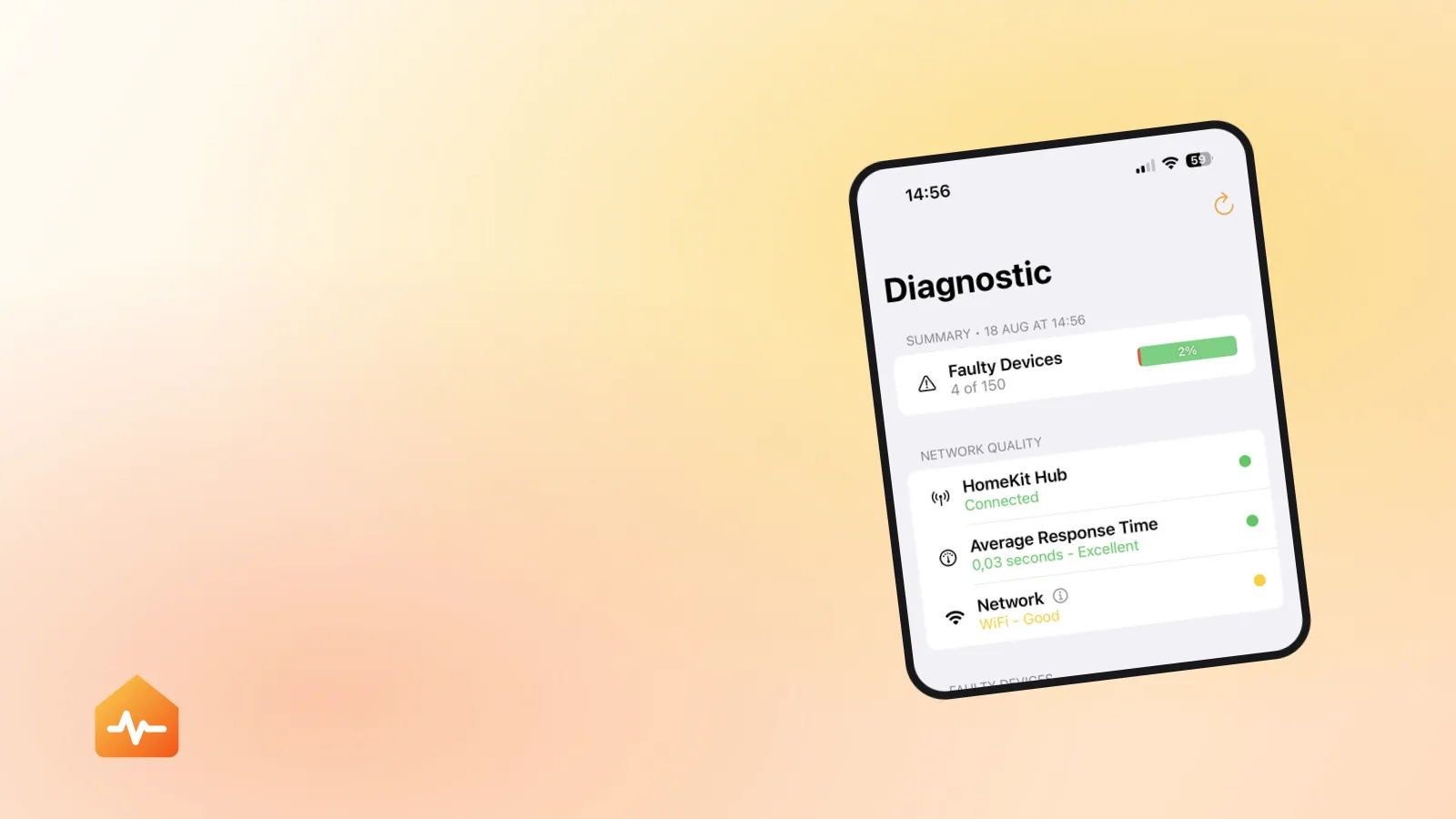
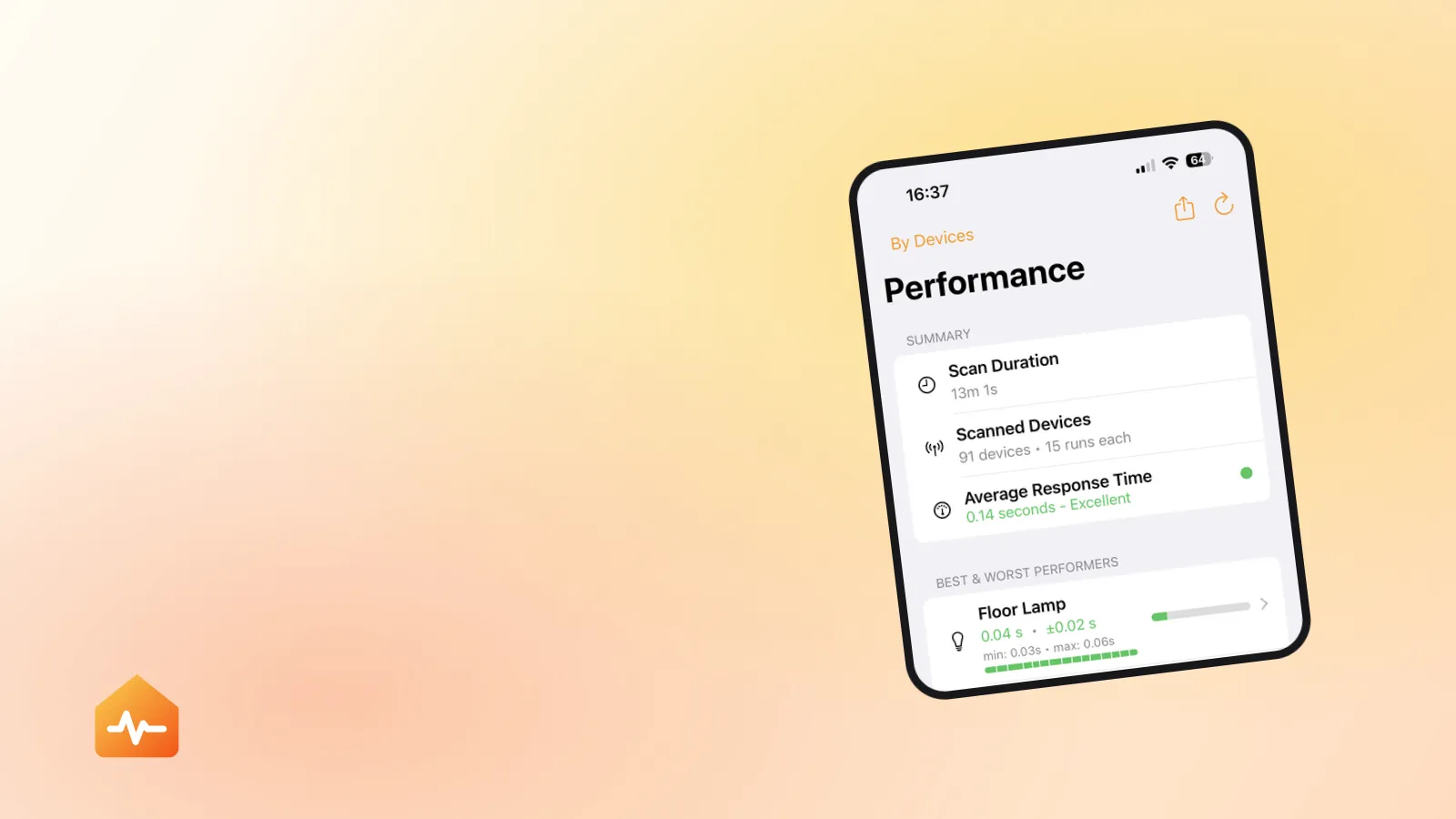
The difficulty with band and placement problems is that they are invisible from the Home app. An accessory either responds or it does not, and there is nothing to tell you that the one in the garage answers four times slower than the one in the hall — right up until the day it stops answering at all.
What you want is the comparison: response times per accessory, grouped by where they are and what they sit behind. A room where every accessory is slow is a coverage problem. One slow accessory in a room of fast ones is that accessory.
What to change, in order
-
Set security to WPA2/WPA3 Transitional if it is currently WPA3-only. This single change fixes more smart home problems than any band adjustment, and it costs nothing in security for modern devices.
-
Use one network name for all bands, per Apple’s recommendation, and give it a name that is not a router default.
-
Set 2.4 GHz channel width to 20 MHz and leave channel selection on Auto.
-
Turn off hidden SSID and MAC filtering if either is on. Both cause connection problems without meaningfully improving security.
-
Reduce band steering aggressiveness if your router exposes it, rather than splitting the network.
-
Split temporarily only for setup, and merge the names again afterwards.
-
Improve coverage last, and physically. If accessories in one part of the house are consistently slower, that is a placement problem and no setting will resolve it.
When the band is not the problem
Band configuration gets blamed for a lot of failures that have nothing to do with it. Three worth ruling out before you spend an evening in the router’s admin page:
- Everything failed at once, recently. That is a hub or a router event, not a band issue. If it started when you changed router, what a new router actually breaks is the faster route.
- It fails only when you are away from home. The accessories are fine; your home hub is not reachable.
- It comes and goes. Intermittent failure has causes that no band setting addresses — batteries, Thread parents, bridge congestion. An accessory that keeps disconnecting covers those.
And if a single accessory is reachable but slow enough to keep falling out of scenes, the band is a contributing factor rather than the cause. That is a latency problem, and it is best pursued from measuring where the delay actually comes from rather than from the router.