The router arrived on Tuesday. You set it up, everything on your phone reconnected, streaming works, and the internet is faster than it was.
Then you open the Home app and half the house reads No Response. Lights that worked on Monday. A hub that has not moved. Nothing is physically different, and yet nothing responds.
Why a router change breaks HomeKit and almost nothing else
Your phone and laptop rejoined because you typed a password. A smart plug cannot be told anything. It stored a network name and a password at the moment it was paired, and that is the only network it knows how to look for.
There is a second reason, and it is the one people miss: HomeKit control is local traffic. When you tap a light while standing in your kitchen, nothing goes to the internet. Your iPhone finds the accessory on your own network and talks to it directly. That discovery uses multicast DNS — the same mechanism behind AirPlay and printer discovery.
So a router can have flawless internet on every device in the house and still be completely broken for HomeKit. Speed tests will not show it. Neither will the router’s own diagnostics.
First: which accessories failed?
The pattern is the diagnosis. Open the Home app and look at the whole list rather than the one accessory you noticed.
| What failed | What it points at |
|---|---|
| Everything, including the hub | The hub never joined the new network |
| Accessories fail, the hub reads Connected | Client isolation or multicast filtering on the new router |
| Only accessories behind one bridge | That bridge — old network, or a static IP from the old subnet |
| Only the cheaper Wi-Fi accessories | A 2.4 GHz problem: band steering or security mode |
| Thread accessories only | Their border router, not Wi-Fi — Thread accessories hold no Wi-Fi credentials |
| Everything works at home, nothing away | The hub, again — see below |
| Everything worked for a day, then failed | DHCP lease expiry or a changed subnet |
If accessories are fine at home but dead when you are out, the accessories were never the problem — go to diagnosing a home hub that is not responding, because that is the exact signature of a hub that has not come back.
The move that avoids all of this
If you have not swapped the router yet, or you can still change its settings, do this before anything else: give the new router the same network name, the same password, and a compatible security type as the old one.
Every Wi-Fi accessory in the house then rejoins on its own, with no app, no reset and no re-pairing. It is the difference between an afternoon of work and a cup of tea.
The one caveat is security. Apple’s recommended settings for Wi-Fi routers — last updated in July 2026 — are WPA3 Personal, or WPA2/WPA3 Transitional where you need compatibility with older devices. Most HomeKit accessories are older devices. If your new router defaulted to WPA3-only, that alone will keep them off the network no matter how right the name and password are.
Bring things back in the right order
The order matters because each layer hides the one below it. A hub that is offline makes every accessory look broken, so diagnosing accessories first tells you nothing.
-
The home hub, first and alone. For an Apple TV, Settings → Network and join the new network — or use Ethernet, which removes the problem permanently. For a HomePod, open the Home app: when its old network has disappeared you get a banner reading “This HomePod is on a different Wi-Fi network than this iPhone”. Tap View Details, then Move HomePod to [network name]. Nothing below this step is worth doing until the hub reads Connected.
-
Bridges next. A Hue Bridge, an Aqara hub, a Lutron bridge. Most are wired, so they follow the new router automatically — unless you gave them a static IP on the old subnet, in which case they are now shouting into an address range that no longer exists. Fix that in the bridge’s own app.
-
Thread accessories, which need nothing. Thread accessories never held Wi-Fi credentials, so a router change does not touch them directly. If they failed, it is because their border router — a HomePod, HomePod mini or Apple TV — is the thing that fell off. Fix step 1 and they generally return on their own.
-
Bluetooth accessories, also unaffected. If a Bluetooth accessory stopped working at the same time, the cause is the hub relaying it, not Wi-Fi.
-
Individual Wi-Fi accessories, last. These are the ones that genuinely need new credentials. Try a power cycle first — many rejoin once the old network reappears or the new one matches.
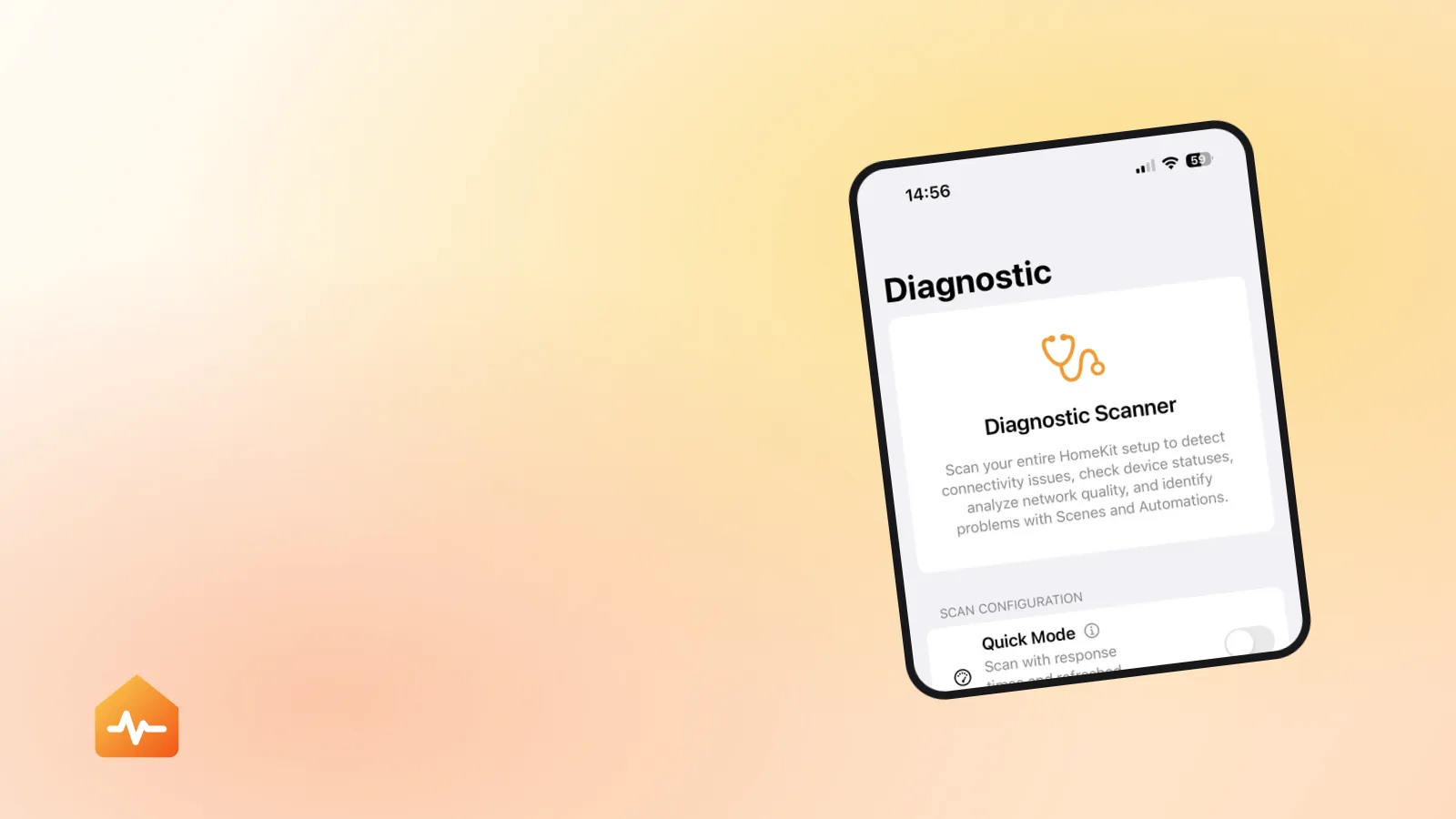
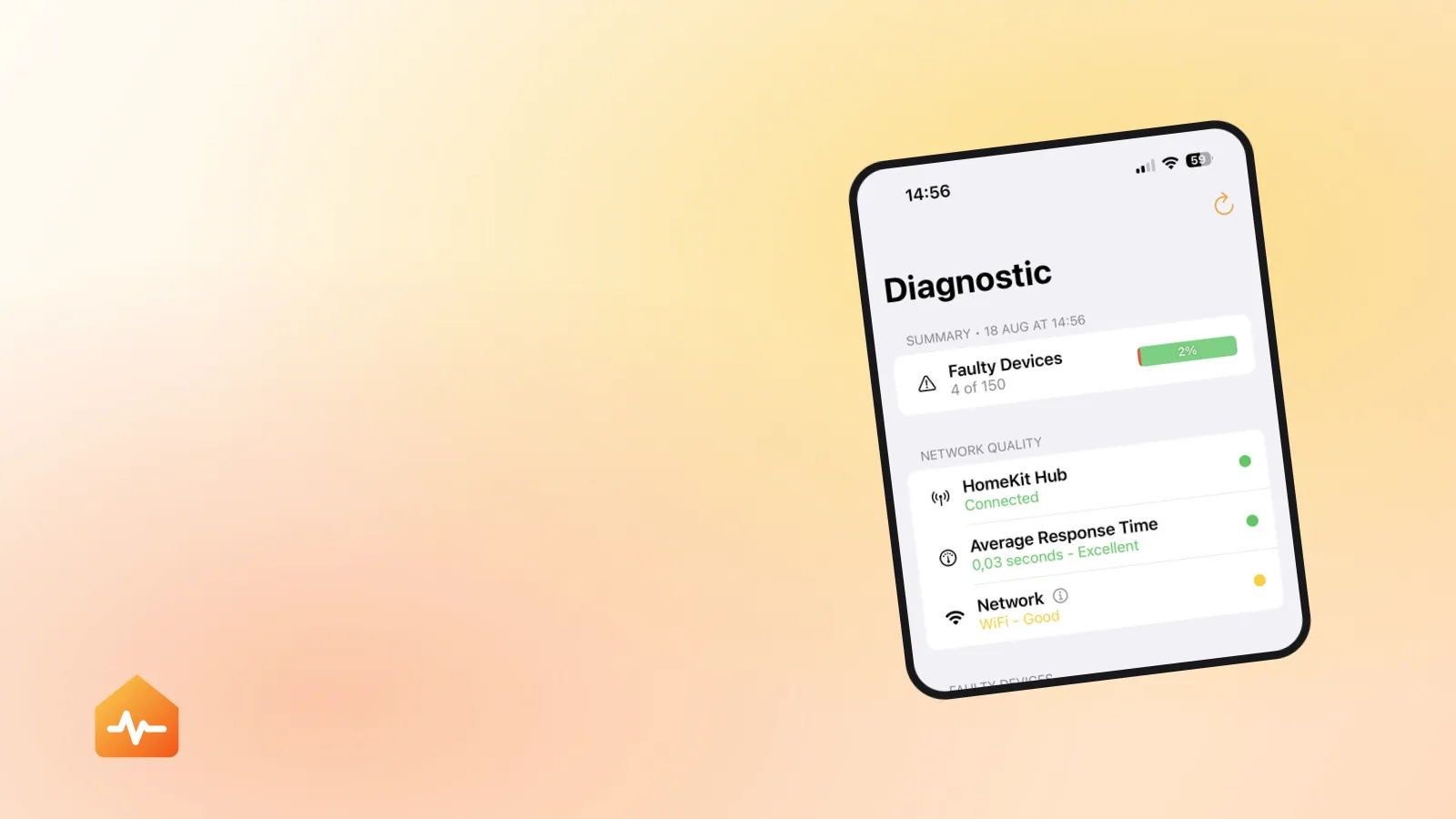
Working down that list by hand is where the evening goes. Forty accessories means forty taps in the Home app, waiting a few seconds each, remembering which ones you have already checked, and repeating the whole sweep after every change you make to the router.
The five router settings that break HomeKit
If the hub is back and accessories still will not respond, the fault is in the new router’s configuration. These are the settings that matter, roughly in order of how often they are the culprit.
Security mode set to WPA3 only
Apple recommends WPA3 Personal or WPA2/WPA3 Transitional. Plenty of HomeKit accessories predate WPA3 entirely and will silently fail to associate with a WPA3-only network. Transitional mode lets modern devices use WPA3 while older accessories fall back to WPA2 Personal (AES).
Apple also lists settings to avoid outright: WPA/WPA2 mixed mode, WPA Personal, anything with WEP or TKIP in the name. If your old router used one of those, that is the one case where keeping the old configuration is the wrong call.
Client isolation
Sometimes called AP isolation, guest isolation, or “block LAN access”. It stops devices on the network from talking to each other, which is a sensible default for a café and fatal for a smart home. HomeKit is device-to-device by definition — your iPhone talking to a bulb, your hub talking to a bridge. With isolation on, every one of those conversations is blocked while the internet works perfectly.
Multicast and mDNS filtering
Accessories are discovered over multicast DNS. Routers filter or rate-limit multicast under several names — IGMP snooping, multicast rate limiting, “optimise multicast traffic”, Bonjour gateway settings. Any of them can leave accessories present on the network but invisible to HomeKit, which reads as No Response.
A merged SSID and band steering
Apple is explicit here: use a single network name for all bands, because different names per band mean “devices might not connect reliably to your network, to all routers on your network, or to all available bands”.
That is the right steady state, and it is worth saying clearly because a lot of forum advice tells you the opposite. The genuine exception is setup: some 2.4 GHz-only accessories cannot be added while your iPhone is sitting on 5 GHz. If an accessory will not pair, splitting the bands temporarily, adding it, and then merging them again is a reasonable workaround — a temporary measure, not a permanent configuration.
Apple’s other band guidance is worth copying while you are in there: enable all bands, channel selection on Auto, and channel width set to 20 MHz on 2.4 GHz with Auto on 5 GHz and 6 GHz. Which devices actually need which band goes through the full list, including why bridged and Thread accessories are unaffected by any of it.
Hidden networks and MAC filtering
Apple recommends disabling both. Hidden SSIDs cause connection problems without providing security, and MAC filtering is worse than useless now that Apple devices use a private Wi-Fi address — a different MAC address per network. Your iPhone joining a brand-new network presents a brand-new MAC, so a filter list carried over from the old router will not contain it.
The failure that arrives a day late
Everything worked on Tuesday evening and broke on Wednesday morning. Nothing was touched in between.
This is almost always DHCP. Devices held their old IP addresses until the lease ran out, then asked the new router for fresh ones. If the new router uses a different address range — 192.168.0.x where the old one used 192.168.1.x — anything with a hand-assigned static address is now on a subnet of its own.
Two related causes produce the same delayed break:
- Two DHCP servers. If the old router was kept in place as a switch or access point but never had DHCP turned off, devices get addresses from whichever answers first. Apple’s guidance is one DHCP server per network, full stop.
- Static IPs on bridges and hubs. Common on a Hue Bridge or an Apple TV, and invisible until the subnet changes.
Apple suggests a DHCP lease time of 8 hours for a home network, which is also roughly the delay people report between the change and the failure.
When re-pairing is genuinely the answer
Sometimes an accessory really does need to be reset and added again — most often when it was half-configured during a failed setup attempt, or when its manufacturer’s app cannot see it either.
The sequence that costs least:
-
Power cycle the accessory and give it two minutes. Many rejoin without help once the network is right.
-
Check it in the manufacturer’s own app. If it responds there, the accessory and its Wi-Fi connection are fine and the break is between that system and HomeKit — a different problem with different fixes.
-
Restart the router, then the bridges and hubs, then the accessory. Apple’s order, and it matters: a hub that rejoins a misconfigured network comes straight back with the same fault.
-
Only then remove, reset and re-add — following the manufacturer’s reset instructions, which are accessory-specific and are the step people skip.
If it still fails
After the network is right and the hub is back, a small number of accessories may still refuse. At that point the router has stopped being the interesting part of the problem and you are troubleshooting individual accessories, which follows a different order — start with what “No Response” actually means.
And if your accessories all respond but your routines have not come back, that is a separate failure with the same trigger: automations run on the hub, and a hub that was offline for a day may have lost references to accessories that were removed and re-added while it was gone. Diagnosing automations that stopped working picks up from there.